
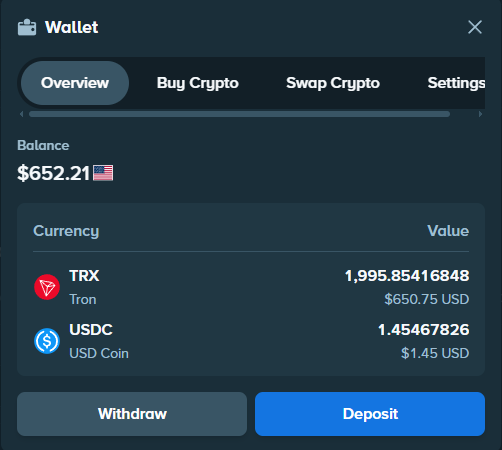


It all starts in the Stake Wallet. Buy crypto through the options offered in your account, or send it from a platform such as Kraken. Choose the route that suits you: the steps below take you through to its arrival in your balance.
Already own crypto? Jump straight to the transfer section. Available purchase and payment options are shown in your Wallet.
Buy directly through the Stake Wallet
Route 1 · Direct purchase
- Open the Stake Wallet and select “Buy Crypto”.
- Select the cryptocurrency, amount and payment currency.
- Choose Swapped or MoonPay from the displayed offers.
- Complete payment on the provider's secure page.
Swapped
Third-party provider offered when the country, payment and cryptocurrency combination is available.
MoonPay
Third-party provider that requires identity verification and displays the available payment methods.
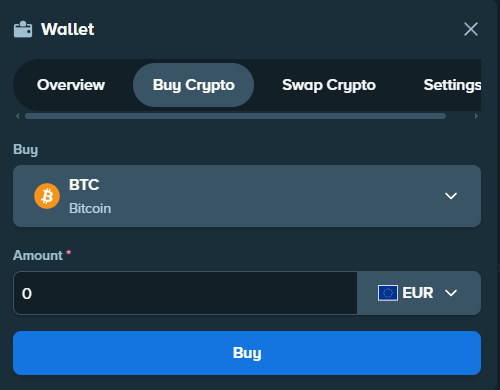
This option depends on your country, currency, payment method, asset and the provider’s checks. If no provider appears, use the Kraken route.
Buy your crypto on Kraken
An exchange is a platform for buying and selling cryptocurrencies using different payment methods. Here, Kraken offers a straightforward way to buy the asset before sending it to Stake.
Buy, then send
The two videos show how to fund Kraken, then buy your chosen crypto. Once the purchase is complete, send it to your Stake address using the following steps.
Step 1 · Fund Kraken
How to fund a Kraken account quickly
External YouTube tutorial, not produced by The Gambling Desk.
Step 2 · Buy cryptocurrency
How to buy cryptocurrency on Kraken quickly
External YouTube tutorial, not produced by The Gambling Desk.
Transfer the funds to Stake
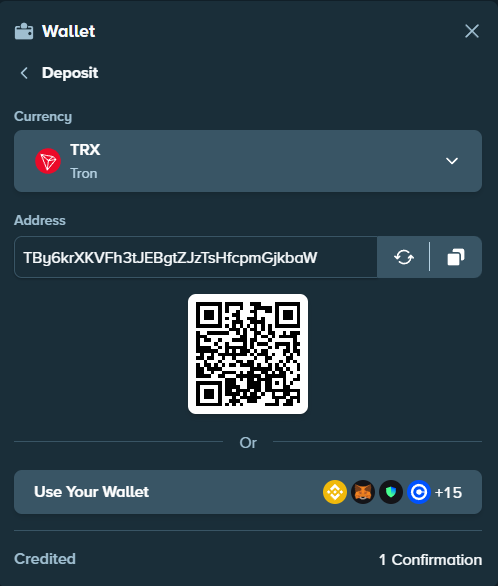
- On Stake, open Wallet, then Deposit.
- Choose the crypto you want to receive.
- Select the network if several options are offered.
- Copy the address shown by Stake.
- In Kraken, open Withdraw and choose the same crypto.
- Select exactly the same network.
- Paste the Stake address into the destination field.
- Add the memo or tag if Stake shows one.
- Check the address, network, amount, minimum and fees.
- Confirm the transfer.
A simple analogy
Think of a bank transfer: the address indicates where to send the funds, like an IBAN. The network indicates the route the transfer must follow.
The network selected on Kraken must be exactly the same as the one displayed by Stake.- Deposit address
- Recipient's IBAN
- Network
- Transfer route
- Amount
- Sum sent
For a first transfer, a small test can be useful if the displayed minimum and fees allow it. It is not required.
Which crypto should you use for the transfer?
The four options below have a shared network officially documented by Stake and Kraken as of 25 July 2026. Availability may still depend on your country and account.

Solana
USD Coin (USDC)
A stablecoin designed to track the dollar, available on several networks.
Read the full network name: the USDC ticker alone is not enough.

TRON (TRC-20)
TRON (TRX)
The TRON network’s native asset, handy for a straightforward transfer.
TRX is the asset; TRC-20 is the network to select.

Solana
Solana (SOL)
The native asset of a generally fast, low-cost network.
Transfer times and fees still vary.

Ripple
XRP (XRP)
An asset designed for transfers, with a network supported by both Stake and Kraken.
Also copy the destination tag displayed by Stake.
For the transfer, select the same network on Kraken and Stake. Fees appear in the summary before sending.
Can you also play with fiat currency on Stake?
Stake mainly revolves around cryptocurrencies, depending on the market. In some countries or versions of Stake, users can also deposit, play and withdraw with a local currency offered directly in their interface.
ARS, CLP, CAD, VND, INR and TRY are among the local currencies presented here.
The currencies offered for your country and account appear in the Wallet. This option lets you use a local currency; buying crypto with MoonPay or Swapped follows the purchase route described above.
Your checklist before sending
- Asset: the crypto withdrawn from Kraken must match the one selected on Stake.
- Network: both screens must show the same network.
- Address: copy it from Stake and compare the first and last characters.
- Memo or tag: add it whenever Stake shows one, especially for XRP.
- Minimum amount: check it on both platforms.
- Fees: Kraken shows the withdrawal cost before confirmation.
- Availability: a recent card or digital-wallet purchase on Kraken can trigger a temporary withdrawal hold.
Using the wrong network can prevent funds from being credited, and recovery is not guaranteed. If in doubt, do not confirm the transfer.
If your deposit has not arrived
First check the withdrawal status on the sending service. If it is complete, note the transaction ID and check the network explorer. Then check your Stake Wallet history. A transfer still awaiting confirmations is not necessarily lost.
If the asset, network or memo does not match Stake’s instructions, do not send a second transfer to “test”. Keep the transaction ID and contact official support with the exact transfer details.
Common questions
What is the simplest way to make a first Stake deposit?
Open the Stake Wallet, then Buy Crypto. If Swapped or MoonPay is offered for your country, currency and chosen crypto, you can buy without first preparing an external withdrawal address.
Do I have to use Kraken to deposit on Stake?
No. Kraken is one option if you want to buy crypto separately. You can also use the direct purchase option shown by Stake or send crypto you already own from a compatible service.
What are the address and network for?
The address identifies the destination account. The network is the technical route the transfer uses. Both must match the information shown by Stake.
What happens if I use the wrong network?
Stake says an asset sent through an unsupported network will not be credited. Recovery is not automatic and may be impossible.
How long does a deposit take?
It depends on the network and required confirmations. Follow the transaction in the sending service’s history, then in the Stake Wallet.
Why might the amount received be smaller?
Kraken displays a withdrawal fee and minimum before sending. These vary by asset and network; always check the current summary.
Once the transfer is confirmed, follow its status in Kraken activity and then in your Stake Wallet history.